Wednesday, January 17, 2018

That pesky little IE com object

The world is changed... Much that was once was is lost... History became legend, legend became myth... Until, when chance came, it ensnared a new bearer. - From the intro to "The Lord of the Rings - The Fellowship of the Ring"

Something has been bothering me. I hinted at it in an earlier blog post (see item #4 here: https://limpidwebblog.blogspot.com/2016/12/what-it-isnt.html). There is a nifty way to get a script (such as VB or PowerShell) to download additional payloads or perform C2 even with outbound firewall restrictions with Windows Advanced Firewall applied to the script engines. I have known about it for a while (shoutout to an acquaintance who showed me the PoC code), but I haven't made it a priority for various reasons and I wasn't hearing a whole lot about it. But in the last few weeks I have seen several people discuss it on Twitter, so I felt like it was past time to elevate it in the priority list. An evil from an age in the distant past had be rediscovered and it needs to be destroyed! (Ok, maybe not quite that dramatic.)

One of the challenges with a pre-defined allow list for outbound traffic from an endpoint by application is that there are some applications that are expected to go all over the internet, such as web browsers. The nice thing about modern web browsers though is that they are accustomed to the dangers of the net and are hardened against misuse and abuse probably more than almost any other app on the OS. Because they are hardened, it is generally considered safer to allow them liberal access from an endpoint firewall perspective - plus it is really hard to create a comprehensive allow list by IP for something like the web browser. That battle usually has to be fought at the DNS/proxy/I(D|P)s levels.

But there are some browsers who have been around for a very long time. Some that existed before our age, when the internet was more open, more vulnerable, more precious. One must go back, visit the tomes of TechNet, and clear the cobwebs that have collected over the last two decades. Be careful as you scroll through, these pages are delicate and it takes longer for the long dormant archive hard drives to spin up as you read through it: TechNet c. 1996: The Internet Explorer Scripting Object Model

Behold the prophecy:
The scripting object model, which provides access to the browser, is a collection of objects that can be accessed by any scripting engine. VBScript accesses the scripting object model when it is executing code in an HTML page. Developers can also exploit the scripting object model in VBScript code. https://msdn.microsoft.com/en-us/library/ms970457.aspx, Emphasis added.
Others have documented the fulfillment of the exploit potential already, here are a few examples that illustrate how this can be used (note that this list isn't exhaustive, just a few that I have read. If I left a good one out, feel free to reply with it):

@Carlos_Perez talks about it here:
and here:
https://twitter.com/cyb3rops/status/883512138723209216

@harmj0y talks about how it was used in Empire 2.0 here:
https://www.harmj0y.net/blog/empire/the-empire-strikes-back/
A great example is the listeners/http_com module. This module uses hidden Internet Explorer COM objects to communicate instead of Net.WebClient.
@leoloobeek has a great writeup on both how to use this and how to detect it with Sysmon: 
I want to avoid any network communications initiated from an exe that isn’t Internet Explorer (or Edge)
Detecting a bypass like this is very important. In fact, I would encourage anyone collecting the Windows Filtering Platform audit logs or Sysmon network audit logs to create an alert any time a previously unseen application reaches out to the internet.

I wanted to take this a step further though. I didn't want it to work at all. As was mentioned by @danielhbohannon, using an IE com object loads an interesting .dll - ieproxy.dll. Let's take a look at the file details.

Check out that interesting "File description" line.
When researching the InternetExplorer.Application object I ran into a few things that mentioned it was sometimes called IE ActiveX, so I suspected that this was the .dll that provided the COM functionality. To better understand how this worked I used PowerShell to create an IE COM object a few times and watched the system activity in Microsoft's Process Monitor. When PowerShell created the object, it would load this .dll, which was great news. This means that it wasn't loaded until it was called, which means PowerShell wasn't dependent on this .dll to run. And if it isn't a dependency, blocking it will only cause issues when someone tries to call it, which should be rare.

Based on my previous work of using EMET to block .dll access to limit malicious capability (see https://limpidwebblog.blogspot.com/2016/09/should-that-app-use-internet_94.html for more details) I already had a quick way to test this theory... I spun up my Windows 10 VM lab instance and installed and configured EMET ASR to block ieproxy.dll from the PowerShell.exe process - and nothing happened. Turns out this was not so quick - EMET stopped working in Windows 10 after 1703. I had to get a Windows 7 test VM up and running.

Three hours later, I finally had that beautiful red text:


The good news: I finally had a way to stop this in PowerShell. I haven't yet tested it in other script engines, but I suspect that cscript, wscript, and others would be worth blocking as well. My initial testing has shown that none of these scripting engines are using this for other purposes... if it stays quiet for a little while longer I think it will be fairly safe to block it.

The bad news: ASR mitigations in Windows Defender don't have this kind of capability (as far as I can tell) so to do this in Windows 10 >= 1703, requires use of a third party tool. There are a few out there that do, but often this isn't a primary use case and it takes a bit of tweaking to get it to work.

Here's hoping that Windows Defender re-introduces this capability and finally brings ASR back into parity with EMET!!!

Until then, work hard and spend time with your family.
Branden
@limpidweb

Tuesday, September 19, 2017

Using One Defense to Mitigate Bypass of Another

I am a big fan of using several layers of defense, but it is even better if you can use one defense to mitigate the bypass of another. I have written about this a little before. I ran into one of those scenarios recently and wanted to share it because it ties in nicely with my previous entries for both Windows Firewall with Advanced Security (WFwAS) and AppLocker.

In my internet ramblings I happened across the following blog post by David Fletcher of Black Hills Information Security.

https://www.blackhillsinfosec.com/bypassing-cylance-part-4-metasploit-meterpreter-powershell-empire-agent/

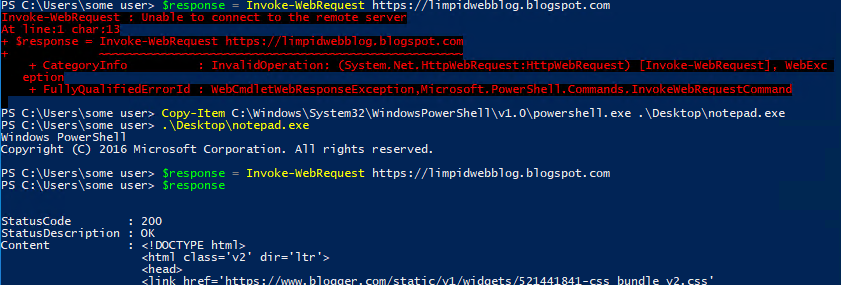
The primary purpose of that post was on how they were able to get around a particular security tool. The approach was fascinating and surprisingly simple - rename or move powershell.exe and all of the protections that were intended for that executable will no longer work. This had me thinking - what would this do to WFwAS rules that limit powershell from downloading content from the internet? I immediately knew the answer. Windows firewall rules limiting powershell connections to the internet were limited to the path and executable name. This would go right around it and let the attacker do their business, even as a standard user!

In the words of US Brigadier General Anthony McAuliffe, "NUTS!"
I started thinking about how I would address this, and after a little while an idea came to me. What if I used an AppLocker deny rule to deny powershell.exe from every location except where it is expected to run (and where my firewall rules apply)? Let's get to work!

First I created an AppLocker executable rule set to deny to prevent PowerShell from running. It could be based off of a digital signature (preferred) or hash, but the hash would require maintenance for each version and each time the file was updated.

For the Publisher rule it is important that the File name is specified.
Next, I added an exception based off of the approved path location.

In this case, the exception location is %SYSTEM32%\WindowsPowerShell\v1.0\powershell.exe
That's it! Now to test.

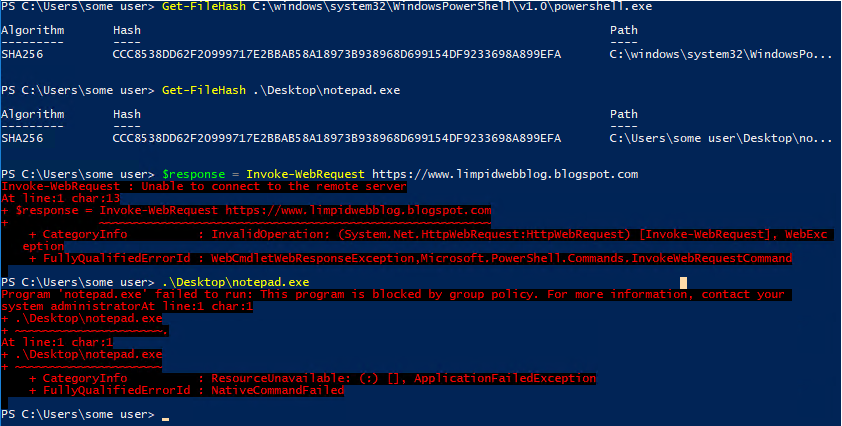
Look at that beautiful red text! 

We can see here that the two technologies working together are effective at stopping this. Windows firewall stops the first attempt to use PowerShell to download external content, and AppLocker stops the workaround!

If possible, rules like this should be configured to ensure (by Publisher or Hash) that all executables with outbound WFwAS rules can only be run from their expected location to ensure that these are not trivially bypassed by moving or renaming the executables.

If a good list of allowed applications was in place this type of activity would be stopped in most cases. This rule could be added to an existing policy for extra assurance or to cover any loopholes in the existing policy. If AppLocker isn't configured in an environment, it would also be possible to configure a new AppLocker policy that did nothing else but block this particular workaround for any executables defined in WFwAS policies. It would just need a deny rule similar to what is shown above, as well as an Allow rule to allow everything else. (I wouldn't recommend this policy by the way, but it would be better than nothing if you were trying to protect WFwAS rules.)

Unfortunately this will only work on Windows Enterprise Edition, I was not able to find a way to do this with Software Restriction Policies. :-(

I think that this is a great illustration of the benefits of defense in depth, even at the endpoint level. If there are ways around a mitigation or a technology it doesn't necessarily mean that technology is no longer useful. It may just mean that we need to get creative and find ways to protect it with the tools available to us.

I have several exciting posts lined up, hopefully I will be able to get them published over the next few weeks.

Until then, work hard and spend time with your family.
Branden
@limpidweb
Monday, July 10, 2017

Scaling AppLocker - Managing it AFTER Deployment!

When working on limiting outbound access to the internet by application with Windows Firewall with Advanced Security I kept running into a key shortcoming - introducing a new or previously unknown application to the system allowed bypasses to firewall rules when using a blocklist configuration. A pre-defined allow configuration of outbound traffic with WFwAS is difficult or nearly impossible to scale, so it wasn't going to solve the problem by itself. WFwAS can do a great job of limiting web access for pre-defined applications in common locations, but it is difficult to use it when there are new applications introduced into folders with different or random path names on thousands of machines. The lack of wildcards or user variables in the path of an application in a rule means that many applications that use the internet could not be managed in a practical manner for more than a small number of machines.

This is one area that an application control policy can help quite a bit. An application control policy can limit newly introduced applications to only those that are trusted (more or less) to behave or have limited abilities to interact with the web programmatically, helping mitigate some of the gaps left by WFwAS. The best bet for a strong security posture on Windows workstations is to use Windows 10 with all of the great mitigations that come with it. For example, Device Guard can be deployed as a very effective deterrent to malware, and many people who are much more knowledgeable than me have discussed it in depth. But what if Device Guard isn't available or isn't enough? There is still a strong case for using AppLocker in many environments, either alone (not as good as Device Guard but better than nothing) or as a more granular supplement to Device Guard.

There is quite a bit of documentation from Microsoft, as well as help on several blogs, with information on how to create an initial AppLocker policy. If you are looking for a place to start, here is a great reference resource; there are many others out there: https://docs.microsoft.com/en-us/windows/device-security/applocker/applocker-overview

A lot of the documentation and blogs discuss creation of an AppLocker policy using a gold image and then pushing it out in a manner that enforces this gold image. It is a good practice and definitely the way to get the most benefit from AppLocker...

...but what about deploying it to a large number of already existing machines that were built over a long period of time with different images of various metallurgic constitutions? What if AppLocker has to be deployed (maybe quickly) into an environment that already has accumulated years of bad habits and many applications that aren't even remotely accounted for by the gold image?

There are a few things that can help make this happen.
  1. Have a clear plan on what to accomplish with AppLocker (see previous link to AppLocker Overview from Microsoft)
  2. Have a method of centralizing and analyzing AppLocker audit logs, such as Windows Event Forwarding (WEF). https://social.technet.microsoft.com/wiki/contents/articles/33895.windows-event-forwarding.aspx
  3. Create a candidate policy based off of a gold image and best practice recommendations.
  4. Test the candidate policy against a representative group in audit mode.
  5. Adjust the policy as necessary using audit logs to inform of blocked files or applications.
  6. Apply the policy in an audit configuration to the whole organization.
  7. Adjust the policy as necessary based off of the audit logs.
  8. Train IT staff and end users on what to expect when the policy is enforced.
  9. When auditing and training is at an acceptable level, enforce the policy.
  10. Continue to adjust policy as needed when something is blocked that should be allowed using enforcement logs.
  11. Continue training.
Sounds pretty straightforward, right? But when I tried this I kept having problems on the steps requiring that the policy be adjusted. When I initially rolled it out I knew of two ways to create an exception to adjust the policy.
  1. Obtain a copy of the application installer and install it on a test machine. Collect all related installer, exe, script, and/or DLL files and use the GPO editor or PowerShell to create new rules.
  2. Copy installer, exe, script, and/or DLL files from a production machine that already has the application installed and use the GPO editor or PowerShell to create new rules.
This worked well when going through the initial deployment, but as the deployment moved from a few machines to a few hundred to thousands these two methods of updating policies didn't scale. The biggest issue was with application installations or updates that executed files or scripts from a temporary location (which would be blocked) and then removed the files from that temporary location when the installation didn't complete. Many of these were triggered by automated update processes that were difficult or time consuming to manually trigger on a test machine. By the time a notification was generated and someone was able to investigate on a production machine the file was already deleted by the installer. Even without those problems, the sheer volume of blocks and time it took to retrieve the files or install them on a test machine to create rules made it difficult to deploy to the entire organization.

In all of the research I did I couldn't find anything that indicated how to solve this problem. All of the guides I had read talked about what to do once I had a local copy of a file, but all I had was a log entry indicating that something had been blocked. I didn't have access to the file, or it took too long to get it, or there were too many.

After a fair amount of researching and frustration I finally found this gem in the Get-AppLockerFileInformation cmdlet documentation:

"The Get-AppLockerFileInformation cmdlet retrieves the AppLocker file information from a list of files or from an event log. File information that is retrieved can include publisher information, file hash information, and file path information. File information from an event log may not contain all of these fields."
 source: https://technet.microsoft.com/en-us/library/ee460961.aspx, emphasis added

The log entry turned out to be the key to solving the problem - and it was staring me in the face the whole time! If I could retrieve the file information from the event log, I could then pipe it into the New-AppLockerPolicy cmdlet and create rules based off of the logs that were already being centralized. This allowed policy modifications for files even if I no longer had access to the file - as long as I had the audit or prevention log event - which meant it could much more easily scale to a full deployment.

Here is a link to some example snippets of code: https://github.com/limpidweb/applocker/blob/master/applocker_ps_examples-1

These can be used as part of a much larger script to help automate some of the more tedious tasks in making AppLocker policy changes, such as version control, partial match searching, policy backups, change control, etc.

Hope this helps! Now to start planning a new post...

Until then, work hard and spend time with your family.
Branden
@limpidweb

Monday, June 12, 2017

What to do about SMB...

So, how busy were you patching after the worm outbreak last month? Hopefully not very busy - hopefully you had MS17-010 patched in March soon after it was released. Unfortunately it appears that many did not, which begs the question, "Why not?". I am sure there are many reasons - I have heard many of them myself in almost every organization I have worked for. So what to do about SMB now that we have seen this worm and others actively taking advantage of unpached systems? Few mitigations are as good as applying the patch. Please patch quickly and thoroughly! Another good option is to stop using SMB1 - although there are still issues with SMB2 that also need to be patched.

But what can be done if none of these are options? What if you need SMB, but machines can't be patched, or they could be patched but can't be rebooted... because of uptime requirements, or business criticality, or the moon is made out of cheese, or whatever other bad reason for not patching exists... another mitigation option is to block SMB with a firewall. For SMB worms, blocking SMB at the edge of your network and through VPN tunnels is a great start, but what if it gets inside the network through some other form? As long as none of the end users execute untrustworthy email attachments or browse the internet while using a local admin account then things are fine. 😉 For discussion sake let's just say there is a very remote chance that these (or other) SMB exploits cold run on an internal machine on some hypothetical network somewhere. Once the worm is in, the fact that it is remotely exploitable means that it can spread to other systems quickly and have a wide impact if not mitigated internally as well.

One way to stop the risk from unpatched (or unknown vulnerable) systems on the network is to use an endpoint firewall to block the service where it is not needed. For example, almost all workstations need SMB enabled outbound when they are acting as a client, especially to things like domain controllers, file servers, and print servers. But how many things really need inbound access SMB shares on workstations? There are a few use cases I could think of, but not many. For example, many admin functions that require SMB inbound to a workstation could be limited to hardened jump boxes or severs. Blocking SMB access from a workstation to other workstations can also have a substantial benefit - things like making workstation to workstation pivoting much harder. This is a micro implementation of that old adage of network segregation/zones, and there is a lot of benefit from blocking just this one protocol.

So if this can help us limit the risk to workstations, how can we limit risk to our servers? Important servers like domain controllers, file servers, and print servers often require SMB and should always be allowed; because of that they should be prioritized to be patched quickly. Outside of these, many servers don't need SMB so it can be turned off, or if a small amount of SMB is needed it can be allowed for just some devices and the rest can be blocked with inbound rules on their endpoint firewall.

If there are servers that can't have the endpoint firewall deployed or SMB service disabled, another option is to create an outbound rule in Windows Firewall with Advanced Security on as many workstations as possible to block traffic destined to SMB ports on devices that are known to be vulnerable. This isn't guaranteed to stop malicious activity, the firewall could potentially be disabled or the initial infection could be from a device without an outbound firewall. But if it is pushed out via GPO many of the highest risk machines could stop most automated infection vectors, which is better than nothing. If there is a similar scenario like this in the future with SMB or another protocol, the same mechanism could be deployed to protect vulnerable devices as a temporary protection until patching/rebooting could kick in.

Here is what an outbound rule to protect other vulnerable devices could look like (high level):
  1. Have outbound block rules with inverse blacklists for commonly abused applications (like I have covered in previous posts - especially for powershell.exe and mshta.exe)
  2. Configure an outbound block rule for protocol TCP/445 (SMB), and use inverse ranges to exclude (go around) servers/devices that have been patched and restarted (preferably things like Domain Controllers, Print Servers, File Servers, etc. that are patched quickly - I do not recommend blocking these). This would be similar to the inverse ranges configured for applications as discussed in previous posts, the difference for this rule would be to allow for Any application, and then specify a protocol, and this time the "skipped" IPs would likely be on an internal network instead of the internet.
  3. Have the default action be Allow.
As devices are patched the inverse list can be modified to "go around" them, allowing traffic to them but blocking other devices that are not patched. In the case of an infection the initial point of entry would be lost, and in many cases accessible file shares could be encrypted (in the case of ransomware), but this could stop the worm from spreading to other workstations or servers that would be vulnerable. This could limit the damage significantly, and instead of having a shutdown of all devices could just be a file restore for the affected shares and workstation re-deploy for the initial infection.

This could be used for other protocols/ports, it certainly would not be limited to SMB. Hopefully there would be enough warning to configure this and push it out to all devices before a new attack hit. A better scenario would be to proactively enable WFP audit logs, forward them to a central location, and analyze them to come up with a proactive list of outbound protocol access to many popular services and only allowed for the destinations that really need them. Here is possible list of places to start - except for really common ports like 80 and 443. If this could be configured and deployed before something was released the chances of having it spread on your network would be much lower. There is also the added (marginal) benefit of becoming aware of when someone is trying to use a new service without going through proper channels. Maybe that server admin wasn't authorized to install MySQL, or maybe that server (or workstation!) wasn't supposed to have a file share or SMTP services configured on it. With something like this in place, the workstations couldn't connect to it without the rules being reconfigured... which provides an opportunity for discussion of securing and managing this new app before it is deployed to production.

I hesitated to publish this, I still recommend patching as quickly as possible, but I hope that this post shows creative ways that the Windows Firewall with Advanced Security can be used to quickly block a specific risk without the risks of deploying a full workstation firewall allow list.

As hinted before I have some interesting things in the works for AppLocker. The hard part is done and now I am polishing it up, I hope to have it published in my next post.

Until then, work hard and spend time with your family.
Branden
@limpidweb

Tuesday, May 9, 2017

Nuances in the Audit Logs

In a previous post I discussed the benefit of the Windows Filtering Platform audit logs and how the Windows Firewall logs were not as useful because they did not include the process information with the log entry. Things have been swamped at work, so I am just now getting around to enhancing some of the alerting that is generated from these WFP event logs. I was excited to dig into this information, my imagination going wild with the idea that nearly every workstation on my network could serve as a sensor.

Using SIEM rules based off of data collected from a large volume of endpoints is one of my favorite ways to test a theory or a set of rules with low risk of impact. My initial thought was to detect and alert on traffic anomalies based off of the username. IT person #1 might need to be using PowerShell between workstations, but Phone Operator 599 does not. If I could alert on this, I thought maybe I could get to the point of writing rules to further limit what applications were talking back and forth on the network. Easy enough, the data is in the logs. To the logs!

“You keep using that word. I do not think it means what you think it means.”
– Inigo Montoya, The Princess Bride
I quickly found out that even though there is a user field in the log entry, it was blank... on every log file I looked at. Not only was this a huge problem for my proposal for some really useful SIEM alerts, I actually had to go back to my previous post and edit it with a correction.

Strike 1. But wait, there's more...

Since I wasn't getting username information, it was time to move on to my next use case. I thought it would be really helpful to detect anomalous traffic between hosts. This would give visibility into traffic flows that I don't get from traditional sources like network boundary firewalls. I relished the idea of being able to use these logs to trigger on large volumes of addresses or ports scanned from a workstation. I even thought I could be sneaky and detect traffic leaving from a compromised host by collecting logs in unexpected ways and forwarding them off box before the attacker knew what I was doing and then using that in creative and innovative ways.

I went about programming SIEM rules to pick up on a handful of scanning scenarios. These rules would be fairly easy to test too... I started off with a quick PowerShell "Test-NetConnection" and saw the results in the SIEM. Success!

I wanted to prove this out on a larger scale, so I fired up some quick nmap scans that would meet my scenarios and then waited for the alerts to fly. And waited... and waited. They didn't happen. I was getting alerts for other things, but nothing for my scans. After reviewing my alert logic I went straight for the events. There were a few UDP packets, but that was it. I looked at my nmap results and there were thousands of packets being sent... why the disconnect?

I dug into the Windows security log on the test machine and saw the exact same thing as in the SIEM. A few UDP packets, but nothing else. Where were the thousands of TCP connections? I knew for sure that TCP packets were leaving my test machine and data was coming back to populate my nmap scan, but why weren't the WFP logs showing this? Were the logs not logging what I thought they were logging? Inconceivable!

I decided to dig into what exactly constituted a connection and find out. After a bit more testing and searching, I stumbled across this page and the following quotes:
"ALE is a set of Windows Filtering Platform (WFP) kernel-mode layers that are used for stateful filtering.
"Stateful filtering keeps track of the state of network connections and allows only packets that match a known connection state.
...
"Filters in the ALE layers authorize inbound and outbound connection creation, port assignments, socket operations such as listen(), raw socket creation, and promiscuous mode receiving.
"Traffic at the ALE layers is classified either per-connection or per-socket operation. At non-ALE layers, filters can only classify traffic on a per-packet basis.
"ALE layers are the only WFP layers where network traffic can be filtered based on the application identity—using a normalized file name—and based on the user identity—using a security descriptor.
...
"For this reason, policies that enforce who (for example, "administrator") and/or which application (for example, "Internet Explorer") are allowed to perform the network operations mentioned above are authored at the ALE layers.
"Traffic at the ALE layers is classified either per-connection or per-socket operation. At non-ALE layers, filters can only classify traffic on a per-packet basis."
After reading this things started to make a little more sense. When I executed nmap it was running as an administrator and it was configured to perform a TCP SYN scan. Since it was being run as an administrator, nmap could create raw sockets and was only sending a SYN packet and moving on without completing the handshake. Since the handshake was never completed, a stateful "connection" was never made. I believe WFP is auditing based off of the ALE layer information. If the TCP handshake isn't completed, a connection isn't made, if a connection isn't made, a WFP Audit Log isn't created, if a WFP Audit Logs isn't created, my super cool SIEM alerts never fire.

To further prove this, I re-ran the nmap scans with the "-sT" option, forcing it to use the OS stack and complete the handshake. My SIEM blew up with the alerts that I had configured. Things worked as expected.

I haven't yet found proof of this other than the events I have described. I have two theories for this:

  1. Since a TCP connection isn't fully established, the ALE layer doesn't classify a SYN scan as a connection and doesn't log it, but UDP and ICMP show every packet (or at a minimum the first packet in every sourceIP/port and destinationIP/port combo) because they are not stateful.
  2. The raw sockets somehow bypass the filtering drivers.
I am currently leaning towards the first theory.

I had a brief glimmer of hope that maybe the firewall logging that I disabled would provide different data and be more helpful - maybe it captured the Transport or Network layer data. But, it doesn't appear to be so. It was very similar to the auditing logs.

Somewhat deflated, I have had to temper my excitement for my network of sensors, at least for detecting outbound connection scenarios. When I tested Sysmon with the "-n" option, it appeared to have the same problem with with outbound detections of SYN scans. I haven't yet verified all of the scenarios around inbound SYN scans with WFP Audit logs. 

Well, at least there isn't an easy way to use TCP SYN to exfil data to hide it from my logs, like programs up to no good like this, or this, or standards that would allow anything to do it like this. :-( Looks like I have some testing to do to see if my network devices are picking up data in SYN packets. From a workstation perspective, it may be that the best option for this kind of data is in the massive data source known as ETW, but probably for other reasons.

I know that using logs from a machine that I am assuming is compromised is a weak and error-prone option, but I was hoping the element of surprise would work in my favor. It looks I am headed back to the drawing board, with this data set limited to applications that play nice with the OS, which is a lot, but know has an important caveat. One more reason to limit administrative accounts for end users and patch to prevent privilege escalation, just in case you needed one.

I hope to move on from Windows Firewall with Advanced Security on my next series of blog posts and focus on Windows Event Forwarding or a recent adventure... AppLocker!

Until then, work hard and spend time with your family.
Branden
@limpidweb
Monday, December 19, 2016

What It Isn't

It has been over a month since my last post - life has been very busy at work and at home! I still have 3 posts left on my Windows Firewall with Advanced Security to-do list, and a building list of posts about Windows Event Forwarding, or "How I learned to stop worrying and love endpoint logs". So, with that said, let's chip off another topic from my WFwAS list.

I have hinted at this a few times through several posts, but there are several things that Windows Firewall with Advanced Security doesn't do well. Let's face it - the technology is more or less 10 years old. Aside from the ability to tie traffic to a specific application (which is a big deal by the way, in case you haven't read my other posts) it is essentially a basic layer 4 firewall. There are some significant scenarios where WFwAS starts to show its age. It is still useful, applicable, and with the right tools to assist even manageable. But there are a few limitations that have to be worked around if it is going to be used successfully. Here are a few specifics, in no particular order, of things that it doesn't do well.

1. When writing rules there are often limitations encountered when needing to allow or block CDNs with huge swaths of IP space. The internet started using DNS oh, something like 1984 - a mere 32 years ago. Why? Because IP addresses don't scale!

<rant>
Yet this firewall, sitting there humming away happily next to the DNS resolver client behaves in a very anti social manner and instead of asking a few simple questions that the DNS resolver would be happy to answer it goes on its own and instead is based simply off of IP address ranges.
     <sarcasm>
     I'm not bitter - not at all.
     </sarcasm>
Don't even get me started on IPv6. Pity the poor being that has to use this to limit access to IP6 and the think of the massive amounts of electrons that would have to be inconvenienced to make it happen. Or not - because even though it can be used with IPv6, I doubt it is very much.
</rant>

Because of DNS, resource to IP addresses mapping can be umm, dynamic. They can change quickly, they can be load balanced, etc. Static lists of IPs don't always map to a resource I want to allow or deny and if it does now, it might not later, and then might all over again.

Network firewall vendors have heard this loud and clear from their customers and adapted to stay relevant, but WFwAS hasn't. Something like PowerShell can be used to create more dynamic lists that are then imported into the configuration (a topic for a future post), and the firewall itself seems to handle very large lists with ease, but this is bolting on a compensation and can be clunky.

Mitigating control: Use a web proxy or more advanced edge firewall to assist with this where it can.

2. Applications with dynamic names are difficult to manage. Applications have to be explicitly defined, there are no options for wildcards in the path. This makes it difficult to write rules for applications that might need to be allowed, like notorious collaboration "meeting go to" apps or "web ex perience" executables that are saved to temp folders with seemingly random executable names connecting to seemingly random IP addresses. Either a full firewall allow list has to be implemented, denying anything unknown (which can be a management headache); or a block list has to be configured and any unknown application has to be allowed.

Mitigating control: Use application controls (such as AppLocker or better, Device Guard or a 3rd party application control tool if you have it available) to limit what applications can be run on a system and use WFwAS to mitigate the most commonly allowed and abused apps.

3. Some applications seem to use addresses scattered all over the entirety of the IPv4 address space! For example, web browsers and HTML email clients connect to seemingly random IP addresses all day long. This is related to item #1. I wouldn't recommend limiting these applications with WFwAS in any but the most restrictive environments, and even then they are probably sufficiently covered by egress allow lists at the network edge.

Mitigating control: Allow any destination IP for apps that are required to interact with the internet as part of their primary functionality. WFwAS can be used to control the ports that these apps have access to, but I wouldn't recommend anything beyond that. Rely on other defenses to help you here.

4. What if there was this scenario where someone could use crazy archaic technology X [such as - oh I don't know - using something like PowerShell to instantiate a COM call to IE to masquerade as an application allowed to get to any IP to do my CnC] to skirt through your list of allowed applications and Endpoint Firewall all in one fell swoop? Ha! All your base are belong to us!

Mitigating control: Don't allow COM capable apps outside of your internal IP range. Like Internet Explorer. Seriously - use a different browser for web browsing. That said, I understand that a stunt like enforcing this policy would raise a few eyebrows at a corporate scrum or change control meeting. I am still investigating other ways to interrupt COM calls where they are not needed, but haven't found anything magical yet. If anyone has, I would love to hear it.

All these things said I still think that this is an effective control that I have been able to demonstrate in a lab and production environments stops malware and malicious activity that few other tools can. This control doesn't function as a "silver bullet" to solve almost all security needs. It solves one or two things very well, but must exist in an ecosystem of other tools to provide a layered approach of security.

I hope to discuss some of these mitigating controls much more in depth in a future post.

Until then, work hard and spend time with your family.
Branden
@limpidweb

Tuesday, November 8, 2016

To Centralize or Not To Centralize

In my last post I discussed how Windows Filtering Platform auditing can generate the necessary log records for creating outbound rule sets, continuing my theme of applying outbound restrictions to specific applications that are abused to bypass mitigations such as pre-defined application allow lists. With this audit configuration, along with a rule set that defaults to allow and doesn't have any block entries, machines can run for a while to start generating a list of IP addresses to allow.

While that is simmering on the back burner now is a good time to think about how we would like to deploy should we choose to accept this mission (how's that for mixing metaphors?). There are two methods that I am aware of that this can be configured.
  1. Local workstation policy
  2. Group Policy
I think that there are benefits and disadvantages to both approaches, so they are both worth some consideration. I have yet to run into any feature differences when deploying it GPO vs. locally (or vice-versa), but I do think that there are some tactical advantages to using GPOs. If GPOs aren't available to you (for example, home/standalone computers or a workgroup) then a local configuration still provides benefit beyond having nothing at all.

Local Policy
This is where I started getting my feet wet when working with Windows Firewall with Advanced Security. The biggest benefit to me at the time was that if I misconfigured something it only affected my test device and I had direct access to the machine to undo any changes. It allowed me to experiment and verify rules worked as expected while getting comfortable with the options and interface.

The local firewall policy can be configured using the MMC console. This can be opened in several ways, here are two:
  1. Control Panel > System and Security > Windows Firewall > Advanced Settings
  2. MMC Console > File - Add/Remove Snap-in... > Windows Firewall with Advanced Security - Add > Local Computer - Finish.
(Note: depending on the settings on your computer, these will only work if you have access to a local administrator account and/or with UAC elevation.)

Once the GUI is open we have the ability to add or remove rules that affect the local computer. If necessary the policy can be created and then exported, allowing us to import it on another computer or back it up in case it needs to be restored.

Group Policy
The GPO configuration can be managed with the Group Policy Management utility. A new group policy has to be created or an existing one edited. Right click the policy to be modified, and then navigate to Computer Configuration > Policies > Windows Settings > Security Settings > Windows Firewall with Advanced Security. This GUI is very similar to the local configuration.

When making GPOs it can be helpful to create multiple firewall specific GPOs that have similar rule sets depending on the security requirements of the machines that they are applied to. These can then be selectivly applied using WMI filters or security filters, but this won't work in some environments so YMMV.

Pros and Cons
Choosing which method (or even a combination of the two) to deploy depends on the needs of the environment. It is possible to use Local or GPO, as well as GPO with a merge of a local policy. I can't think of a scenario where I would ever want to use the merge option - I usually disable that capability by removing the selection for "Allow local firewall rules". (This can be found by selecting a profile in a GPO configuration, selecting "Customize...", and under "Rule merging" setting "Apply local firewall rules" to "No").

So which one works best in a corporate environment? I think that local policies carry some very substantial risks.

  1. If malicious code executes on a machine and is able to obtain admin privileges it can create policy rules allowing the traffic out or turning the firewall off and bypassing restrictions. 
  2. Local policies can also be changed by local administrators, allowing them to turn it on or off or add/remove rules which can quickly lead to configuration drift. 
  3. A lot of programs will also create very liberal outbound policies when they are installed. 

When all of these are combined the result is an unpredictable and difficult to manage firewall configuration that I wouldn't recommend in a corporate environment.

That said, there are two critical cons to using GPOs that must be considered and mitigated appropriately if this deployment method is used.

  1. If it is misconfigured, outbound GPOs can prevent machines from receiving future GPOs and prevent them from communicating with critical services. This is probably the largest deterrent to using this technology and would probably be a resume generating event in most environments. It is why I spent so much time focusing on the block list capabilities with inverse ranges that I talked about in a previous post.
  2. There is a psuedo-random delay (sometimes up to several hours) between when a change is made to the policy and when it takes affect on an endpoint. This could be a problem if something needed to be rolled out rapidly.

If appropriately configured (not allowing local rule merging) and tested, a GPO can be much more difficult to bypass or disable and can be implemented safely and effectively. This raises the difficulty and cost for attackers, forcing them to abandon many of the mechanisms that are used with malware today.

That said, if admin rights are obtained it could be possible to disable the firewall regardless of the chosen deployment method. At that point it would also be possible (and maybe easier) to just overwrite or attack a permitted application than trying to disable the firewall.

A lot of this hinges on obtaining local admin rights. If end users are browsing the internet and using office productivity applications with local admin privileges there are many options for getting around this (and many other) controls regardless of how they are applied. It is also important to apply security patches in a timely manner to limit the ability of code to elevate privileges using exploits. Windows Firewall with Advanced Security outbound controls can only work if they are a part of a larger ecosystem of controls that work in concert. I believe these outbound controls (or any endpoint firewall with this type of capability) are a critical part of the ecosystem, but can't stand without it.

Regardless of which method is chosen for deployment, PowerShell is has been my friend. Both local and group policies can be directly created, viewed, edited, and deleted with PowerShell. This allows routine tasks to be saved as scripts (for example, modifying the destination IP allowed list to accomodate for a previously unseen destination or removing a destination IP that is no longer necessary). Large lists of IP addresses can be maintaned as files and then imported with PowerShell and applied to the appropriate policy, saving time and difficulty navigating these in the GUI.

I plan to cover PowerShell specifics in a future post - it has saved me an immense amount of time and allowed me to scale and deploy this as a mitigation tool where it otherwise wouldn't have been practical.

Until then, work hard and spend time with your family.
Branden
@limpidweb

Monday, October 31, 2016

Audit Logs, XML Filters, and PowerShell, Oh My!

My last post documented the big breakthrough for me - being able to limit internet access for a few specific programs that had little business accessing the internet and were being abused by malware, pen testers, and researchers alike. Now I had a flexible tool that I could use to greatly limit this abuse.

Now what do I do with it?

Initially I thought it would be sufficient to allow all inside network access for the applications that I chose to limit and then just allow internet access as needed. I had a policy ready to go that would enforce this, but after some initial testing I learned that there was more activity by these applications than I initially thought. To deploy this it would be critical to log connections in the production environment and collect the information needed to make informed baselines before enforcing any application specific rules.

Easy enough, there was a place in the policy configuration where I could set up a log file which would output to a simple text file.


Looks pretty straight forward. Once the configuration was enabled I browsed to the log file to see what I had to work with. Here is a sample:

What's missing here?
My heart sank. There is some useful information in this log, but the application entry was missing! The key feature that drove me to use this tool was the fact that it could be configured to control application access to IP addresses. In order to effectively do that without the rollout becoming a resume generating event I needed a candidate configuration that allowed everything, but logged it, so I could create a baseline; and this wasn't going to let me do that. The other piece of information that this was missing was the rule that it matched against. Lots of data, but nothing to see here. I disabled this log and moved on.

After some time searching I found something that had potential: Windows Filtering Platform Auditing. Windows Filtering Platform is a set of services and an API in the Windows OS that allows traffic to be filtered. It is the underlying set of features that Windows Firewall with Advanced Security runs on top of. (For more, see MSDN) Auditing can be enabled by a policy located in the following areas:

Local:
Local Security Policy\Security Settings\Advanced Audit Policy Configuration\System Audit Policies - Local Group Policy Object\Object Access
GPO:
Computer Configuration\Policies\Windows Settings\Security Settings\Advanced Audit Policy Configuration\Audit Policies\Object Access

In these audit policies there is a subcategory for Audit Filtering Platform Connection. If Success and Failure are configured for this subcategory an event will be created in the system Security log with information about both blocked (event ID 5157) and allowed (event ID 5156) connections. These logs are much more detailed, including the following information:


  • Source User ID Edit 5/9/2017: After additional research I have learned that the source user ID is not in these logs. :-(
  • Process ID
  • Application Name and Path
  • Direction
  • Source Address/Port
  • Destination Address/Port
  • Protocol
  • Filter Run-Time ID (rule ID match)


...and a handful of other pieces of information. Having this information allows us to create a policy that allows all connections but audits them. We can then go through the audit logs and use them to determine a baseline to use when creating our application rules - of course only after thoroughly vetting the source application and every destination IP... right?

These logs have the type of information I was only able to dream about when working with network firewalls - with those I could trace traffic back to a machine and make a good guess at which user it was from but that was about the limit of what I could do. Seeing these logs take the username from the credentials used to launch a process along with the process name and path is a dream come true and provides valuable troubleshooting and forensics data that can be analyzed and consumed later.

Now that we have the data we need, how do we make use of it? On a single computer this is pretty straight forward. These audit settings generate a large volume of events (size log files for retention appropriately), but can be quickly filtered in or out of the event viewer console with the basic filter or with the XML filters.

For example, if you can find a sample event for an application you would like to write a rule for, an XML filter can be used to limit the packets to just what matches one or a few fields. Here is part of the XML view of an event where chrome.exe is connecting to www.google.com over port 443:

This can be obtained by opening the event in the Security event log, selecting the Details tab, and then selecting the "XML View" radio button.

The fields that are shown can be used in the XML filter to get only the specific log entries we might be looking for, even allowing us to use things like =, !=, multiple matches with AND/OR, etc. (see this TechNet blog for more info). I have been able to use up to 7 conditions to narrow down what I was looking for. (As a side note, more than 7 conditions seems to cause the filter to start behaving unexpectedly, but I can't find any information on why that is. If anyone knows why I would be very interested in hearing it.)

But let's not stop there! GUIs don't scale well. Let's imagine we would like to automate this process and have it generate some interesting data for us across thousands of machines so that we could build a GPO and have the confidence to enforce it! I ♥ PowerShell for this - "Get-WinEvent" with the "FilterXPath" switch allows us to write this all in a script to generate a match and then output it to a file for later consumption. If we use an event centralizing technology like Windows Event Forwarding then we have all of these logs in one place and the tools to make them useful! If we have access to a SIEM or logging platform that can take the logging hit, we have a recipe for large scale success.

Hopefully more on Get-WinEvent, WEF, and maybe event ELK in the next couple of posts.

Until then, work hard and spend time with your family.

Branden
@limpidweb

Monday, October 10, 2016

The Key to Success - Enabling Blocklists with Inverse Ranges

Have you ever been doing some task and have some random connection happen in the back of your mind regarding a completely unrelated subject and leaving you with no idea how it happened? That is what happened to me after my initial roadblock when trying to configure Windows Firewall with Advanced Security (WFwAS) to limit internet access for some applications. I knew that if it could control applications in this way it would mitigate all sorts of app AppLocker bypasses and quite a bit of malware. I had shelved my work on the matter though, until I had one of these particular random connection events happen to me while I happened to be taking a shower.

To recap my last post, I had been looking into the ability of WFwAS to limit access to IP addresses or ranges based off of individual executables, but ran into a dead end with the peculiar way that it handles rule order of operations. I didn't yet have enough data or comfort with the tool to deploy it in a way that only allowed pre-defined applications to my entire organization, and had to shelve my active work on it because I couldn't find another way to deploy it. If only I had a way to block some high risk applications that I was pretty sure had little legitimate internet use!

So there I was washing my hair in the shower, and then it hit me. "What if I block all IP addresses except the range that I want to allow, and then just configure the default rule to 'Allow' to handle the rest?" I thought it through for a little while and realized that this could be the key to solving my problem!

After that I couldn't wait to get to work and when I did I jumped right in and started setting it up on my test machine. Sure enough it behaved as expected and worked immediately! Unable to contain myself I bubbled over and had to share my success with a coworker who had been patiently listening to my drama about Windows' firewall. The key to the whole thing was something I called "inverse ranges". But what were these "inverse ranges"? To understand that, let's look back at the example from my last post.

This type of rule is what I spent years configuring and is what defined how my mind thought about rule sets.
My last post illustrated why this wouldn't work with WFwAS. To overcome this I had to think outside of the allow range and instead take the same end goal (blocking the stuff I didn't trust, allowing the stuff I have to trust) and make it fit in the WFwAS "process blocks first" mentality.

The key for this was to block what was not allowed, and then default allow to permit the rest. 

Here is the logic spelled out:
  1. Rule to block IP ranges not allowed that were before the IP address range I want to allow.
  2. Rule to block IP ranges not allowed that were after the IP address range I want to allow.
  3. Default allow the rest.
In other words define what I don't want and assume what I do want, thus the "inverse". Block what I want to block, the default allow permits the rest.

Let's take a look at what that looks like in our WFwAS configuration. I will use the 64bit version of PowerShell.exe as an example, and deny it to everything but RFC1918 IP address space. After watching our pen testers, studying malware in my test lab, and reading other people's blogs I knew that this was becoming a common method used by criminals to use initial execution on a machine to download and execute malicious code and would be high on my list to mitigate. As cool as that sounds, it was probably also due in large part to PowerShell web connections being one of the few things I could actually reproduce for testing that still had real world application.

(I apologize for the picture roll, especially if you are reading this on a mobile device).

Key here is that it is enabled and the Action is set to "Block the connection".
A reasonable name helps too.

Here is where we get to define the path and executable.
Remember that most systems have 32 bit and 64 bit .exe for many system files, so they will take at least 2 rules.
Also, check out that "Services" section... is that what I think it is? You bet, a great topic for another post!

Here is the "inverse range" concept in action. Look closely at the IPs and remember that these are being blocked.


Hard to see, and can't get it all on a single shot, but here is what part of the rule looks like after being configured.
Technically this could be done with subnet ranges, but I decided to simplify my rules by taking advantage of a WFwAS feature by using basic start-finish ranges. This allowed me to take what would require quite a few subnet statements and put it into a single basic range and greatly simplify managing my rule sets.

That's it, my secret is out. Isn't that cool? Well, I think it is anyway. I was able to get a successful PowerShell web download from a server on my allowed range (my internal network), but when I tried something from the internet that was previously working it puked red text onto my console window. But this time it was a welcomed and good puking of red text... in a twisted sort of way where my anthropomorphisation of a consoles behavior begins to quickly fall apart. Because it wasn't just my command puking; no, it was every piece of malware and crypto ransomware that used PowerShell to do its dirty deeds that would be puking all over consoles that were running hidden, and that could now be ignored and left to suffer alone in a world of STDERR!!!

So my next task was to take this and apply it to one of my original goals. I wanted to mitigate Casey Smith's clever use of system utilities to download code from the internet and execute it while bypassing application AppLocker. So I went over to his GitHub page and decided to create a rule for each item on his list of AppLocker techniques that used an executable to download code. I couldn't stop them from executing, but I could substantially limit their capabilities by limiting which IP addresses they needed access to.

I wrote up rules that covered the 32 and 64 bit locations for the utilities on the list and then proceeded to test it in our environment. There were a few applications that did have legitimate needs to access IP address space outside of my organization, but it was easy enough to just add in the appropriate "inverse ranges" to the block statements. There were a few challenges to be sure, but I had an effective mitigation that covered a wide swath of malicious activity. It would be worth my time to continue down this path and see how far it would take me.

With the basic functionality operating, I now had to tackle the challenges presented by long lists of IP addresses across multiple rules. To top that off, several of my applications were running up against the bane of many a firewall administrator - large lists of IP space owned by companies such as Microsoft, Amazon, and Akamai. I decided to tackle it, but that will have to wait until a future post for details.

I really hope that others see the benefit in this and find it helpful. Sound off in the comments or on Twitter if you have any questions about it. I plan to have more good things to come!

Until then, work hard and spend time with your family.

Branden
@limpidweb

Monday, October 3, 2016

Second fail brings me closer...

To recap my last post, I was trying to limit the ability of individual applications on domain workstations from being abused to bypass other restrictions (such as application allow lists) to download malicious content from the internet. EMET provided the capability to do this with an on/off switch, but I needed something more granular to roll this out at scale.

I knew that Windows Firewall with Advanced Security (hereafter WFwAS)  was capable of limiting access by application, but I had only worked with it to limit traffic inbound to a workstation, which is the capability that the basic Windows Firewall has had since Windows XP SP2. I hadn't spent much time with the new features introduced in Windows Vista when the name was appended "with Advanced Security". So, I thought I would give it a go.


To give a frame of reference, here is the console for WF on Windows 10

I began looking into the Outbound Rules section of the configuration. I was immediately overwhelmed with a very long list of complicated rules. Microsoft had contributed helpful stuff they thought I would need. In addition, all sorts of apps had put in custom rules, usually allowing various applications access to any IP address with any protocol. This would have to be cleaned up. But, the one key thing was here. There are rules that were allowing outbound traffic with specific applications listed in the rule. So far this was looking very promising!

Now that I knew that the rules could be limited to outbound traffic from specific applications, the next problem to tackle was limiting an application to some approved destination and then blocking it from all of the rest. My mind immediately went to my past as a network firewall admin... this was a problem that I learned to solve back in my Cisco Network Academy days when my instructors drilled IOS ACLs into our heads.

  1. Allow traffic from a source IP/range to a destination IP/range
  2. Deny all traffic from the source IP/range to ANY
  3. Continue with rest of list
  4. Default Deny statement at the end.
Quick IOS ACL example I whipped up in notepad to limit TCP access to approved telnet and HTTP while blocking all other TCP connections... not very practical in the real world, just using it to illustrate a point.
Easy enough, right? I wasn't quite sure how these applications I wanted to restrict were being used, but I was pretty sure some of them were being used on the corporate network. I decided that initially I wanted to allow access to my internal private IP address range from these applications but deny access to everything else. This would solve my problem of these apps downloading code from some random site on the internet, hopefully without upsetting the IT cart at my organization. So I had two problems to solve. First, writing the allow/deny rules, and second finding out where the default action was for the WFwAS. I decided to start with PowerShell.exe, which was easy enough to test using the Invoke-WebRequest cmdlet.

Since I didn't like the complexity and openess of the default rule set, I cleared all of the default firewall rules. I then added in my rule to allow PowerShell.exe access to the internal network range. Problem one solved.

Now on to problem two. After looking around a bit I found out that the default action can be set by right clicking "Windows Firewall with Advanced Security..." in the WFwAS console and selecting "Properties". The default for Outbound connections was set to "Allow (default)". Since I had removed a whole list of rules I knew that switching this to "Block" was not an option. If I did, I would kill things like DHCP and DNS and various other critical traffic unless I explicitly listed each app and service and what they were allowed to get to. At this time I just wanted to restrict PowerShell.exe. I left the default action to allow and then went back to the "Outbound rules" and set out to configure a Deny to mimic the IOS example above. I figured I would just allow PowerShell.exe to the internal network, deny PowerShell.exe to Any, get them in the right order, and then let the default action tackle the rest.

I guess that means I was back to problem one. Just a minor setback though. I already had an allow rule, so I added in my deny rule for any traffic from PowerShell.exe to destination Any. I was able to get the rule order correct on the screen by deleting and re-adding the allow rule, and started my testing. (Those of you with experience with WFwAS will know exactly what happened next.) Access to the internet was successfully blocked!!! So far so good. Next I wanted to make sure access to my internal network was also allowed. Easy enough, quick test to a webserver on 192.168.40.11...

Interesting...
And with that wall of red text I was introduced to WFwAS rule processing order of operations. I have worked on at least 7 major firewall/router vendors, all of which process rules from top down, first match wins. So why didn't it work? Simply put, WFwAS doesn't process rules that way. In fact, the order listed in the console didn't seem to make any difference at all. So, I went to the interwebs and hit the search button and landed on TechNet. Here is the WFwAS rule processing order, in summary:
  1. Windows Service Hardening (huh?)
  2. Connection security rules (IPSEC... I knew a little about this from a coworker)
  3. Authenticated bypass rules (more IPSEC magic)
  4. Block rules
  5. Allow rules
  6. Default rules
In my case it was the last 3 that really mattered (hopefully more on the first three in a later blog). WFwAS processes all of the Block rules, and if there is a match the traffic is denied. It then processes all of the Allow rules, and if there is a match the traffic is permitted. If there is no match, it applies the Default action defined in the properties dialog box.

With my PowerShell example, even though I had a more specific allow rule ordered before a broad deny rule, the deny rule was processed first and denied all of my PowerShell traffic and there was never an opportunity to match the allow I had set.

Whahh??

To date this is still the only firewall I have come across that processes rules in this way. It took me quite a while to get comfortable with the idea. I would love an hour with the committee at Microsoft who came up with this, um, most interesting solution. I tell myself it made sense at the time, right? I hope it has something to do with some dependency I don't yet understand.

So, my first attempt failed. After the initial elation I was a bit deflated. Perhaps I could switch to a rule that allowed all apps access to the internal network, things like web browsers access to all of the internet, and PowerShell to just the external ranges I knew it needed, and use a default action of "Block" at the end? This would be the "allow list" approach. I knew it would work, but I didn't know which applications needed access to the internet outside of web browsers. I knew that there were things like "web ex"perience meetings and meetings that I could "go to" that would need access to all sorts of IPs and that had random names and various hard drive locations they were launched from. I also knew that lots of installers relied on web connectivity to download applications. In short, I just wasn't ready for a pre-defined allow list, and I really just wanted to limit access to PowerShell and a few other applications.

I had my problem before me. Allow access to internal network for restricted apps, allow access to some external IP address ranges, block all else - without processing block rules first, with a default action of "Allow" for the rest (with logging enabled to start building my allow list - I hope to have more on this later as well). I was stumped and hungry and it was late and I was frustrated with Microsoft and I wanted to go home and see my family. I shelved my skunkworks project for a few days and mulled it over in the back of my head.

Turns out there is a way to do what I wanted, but I had to stop thinking like a firewall admin and think outside of the allow range. But, this post is already longer than I expected, so I will plan to go over how that was accomplished next week. I'll see if I can keep a cadence of a post a week.


Until then, work hard and spend time with your family.

Branden
@limpidweb

Tuesday, September 27, 2016

Should that app use the internet?

One of the inspirations for this blog has been sharing my research in mitigating different types of malware, or activity that can bypass mitigations and perform undesired functions. One thing that really caught my interest is the work that has been published by Casey Smith (@subTee). I found his work on using obscure functions of allowed applications to download code from the internet and execute it particularly interesting. For an example, see http://subt0x10.blogspot.com/2016/04/bypass-application-whitelisting-script.html.

I decided to take a stab at this. My first attempt was to use a technology I was familiar with to see if I could prevent the applications from using the internet to download code. I knew that the ASR mitigation in EMET could limit access to DLLs for an application, and based off of other ASR work I had done I suspected that a DLL was used in the network transaction at some point so I started pursuing this path. A coworker was able to set up a web server that had a customized version of subTee's regsvr32 download payload. Armed with a working example and Process Monitor with a filter to show DLLs (https://technet.microsoft.com/en-us/sysinternals/processmonitor.aspx) I went to work.

After a little work I was able to narrow down 2 DLLs that I think would work. Previous examples on Twitter targeted the example DLL but were easily bypassed (https://twitter.com/thechrisharrod/status/725713658848882688) because they only blocked one DLL that was not required for the download to execute. After some digging with Process Monitor I found out that the two DLLs that seemed to be the best matches were winhttp.dll and webio.dll. I don't know a whole lot about the DLLs themselves but my theory is that winhttp.dll was used to gather any proxy server settings (learned this from my time spent managing a proxy server) and webio.dll was used when making the actual web calls. If either of these were blocked with ASR I was able to get EMET to prevent regsvr and other applications from using the internet. WinHTTP appeared to have the best logging with the EMET blocks, so I targeted that, and it worked!!!

I began testing the mitigation for a few apps that had documented bypasses that used the internet that I thought had no business using it. After only a few hours of testing I knew that while effective, this was not going to work at scale. Simply put several of these applications were using these DLLs for internal network communications as well as for legit internet activity (who knew rundll32 was used to check OCSP?). My goal was to limit these, but to also grow into things more likely to use the internet like PowerShell, cscript, wscript, and mshtml. I had a tool that was effective, but it wasn't granular enough to allow some approved access and block the rest. It was effective, but only on or off.

So, I was back to the drawing board with a network on/off switch in my back pocket. After a few more weeks of work and thinking I found something that had potential, but I am out of time for now... so I will plan to address that on my next post. Maybe at some point in the future this will come in handy, only time will tell. I will see if I can get a video demonstrating the EMET mitigation posted at some point.

Until then, work hard and spend time with your family.

Branden
@limpidweb

Tuesday, September 13, 2016

Hello World

One of the tasks I get to perform at work is to research and study malware and try to find ways to mitigate it and minimize the damage it can do. I am tasked with assessing our defenses and where necessary providing additional layers for my organization to block malicious activities from occurring on workstations or servers without getting in the way of legitimate work.

I have been in several organizations where pen testers had already demonstrated that they could send attachments or get people to click on links to executable files that would bypass traditional defenses such as IPS, email filtering, URL filtering, sandboxing, and anti-virus. After that they were a command away from downloading .exe, .js, .dll, .reg or a host of other persistence mechanisms and free to do their work through covert C2 channels. Malware that was being blasted to us through spam campaigns or delivered through exploit kits was behaving similarly.

I have worked on traditional defense mechanisms for several years. I have a networking background and have spent a considerable amount of time trying to win this battle from the network infrastructure side, but find myself frequently bumping up against the limitations around trying to write policies that can effectively block this kind of activity. Don't get me wrong, I believe that IPS and firewalls and URL filters and such are an important defense mechanism and can effectively block many of the off-the-shelf attacks. But if something is targeted or just happens to fall within the range of addresses that I had to allow out from my workstations I frequently found myself unable to write a policy that was granular enough to stop it. Firewall/IPS/Proxy vendors have been working to fix this but they haven't cured the problem yet. There is a lot of malicious activity that is simply well behaved at the network layer. On top of that, things like custom encryption, new ciphers, or psychedelic obfuscation was limiting the effectiveness of the policies I did have and even updates several times a day weren't fast enough to keep up with the latest attacks.

Over time I have realized that winning the security battle is going to have to take place in large part on the endpoints. Managing a worm outbreak in my environment exposed me to the power of endpoint enforced policies. For a while only allowing pre-defined applications to run proved to be a big help and I became convinced that this would be one of the most effective ways of preventing this malicious activity. The next big thing for me was anti-exploit, and I dove into tools like Microsoft EMET. These are all still very effective, but the adoption of PowerShell by malicious actors flies right through many of the mitigations I had in place, and folks like Casey Smith are finding all sorts of ways to skirt around the limitations of these technologies.

My purpose with this blog is to explore different mitigations that I find (if any) to address these issues. I like to share my work (where I can) with the intent of helping the blue team and making contributions back to the security industry. Sometimes my thoughts will be partial or a work in progress. Sometimes it will just be lamenting how a mitigation didn't work. Sometimes they will just be about random things that seem cool at the time. Maybe the purpose will grow or change over time. Hopefully I can keep it coherent and the blue team finds it useful.

-Branden
@limpidweb