Tuesday, September 19, 2017

Using One Defense to Mitigate Bypass of Another

I am a big fan of using several layers of defense, but it is even better if you can use one defense to mitigate the bypass of another. I have written about this a little before. I ran into one of those scenarios recently and wanted to share it because it ties in nicely with my previous entries for both Windows Firewall with Advanced Security (WFwAS) and AppLocker.

In my internet ramblings I happened across the following blog post by David Fletcher of Black Hills Information Security.

https://www.blackhillsinfosec.com/bypassing-cylance-part-4-metasploit-meterpreter-powershell-empire-agent/

The primary purpose of that post was on how they were able to get around a particular security tool. The approach was fascinating and surprisingly simple - rename or move powershell.exe and all of the protections that were intended for that executable will no longer work. This had me thinking - what would this do to WFwAS rules that limit powershell from downloading content from the internet? I immediately knew the answer. Windows firewall rules limiting powershell connections to the internet were limited to the path and executable name. This would go right around it and let the attacker do their business, even as a standard user!
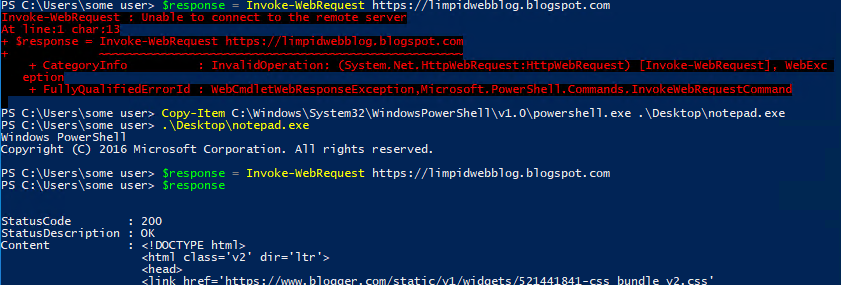
In the words of US Brigadier General Anthony McAuliffe, "NUTS!"
I started thinking about how I would address this, and after a little while an idea came to me. What if I used an AppLocker deny rule to deny powershell.exe from every location except where it is expected to run (and where my firewall rules apply)? Let's get to work!

First I created an AppLocker executable rule set to deny to prevent PowerShell from running. It could be based off of a digital signature (preferred) or hash, but the hash would require maintenance for each version and each time the file was updated.

For the Publisher rule it is important that the File name is specified.
Next, I added an exception based off of the approved path location.

In this case, the exception location is %SYSTEM32%\WindowsPowerShell\v1.0\powershell.exe
That's it! Now to test.

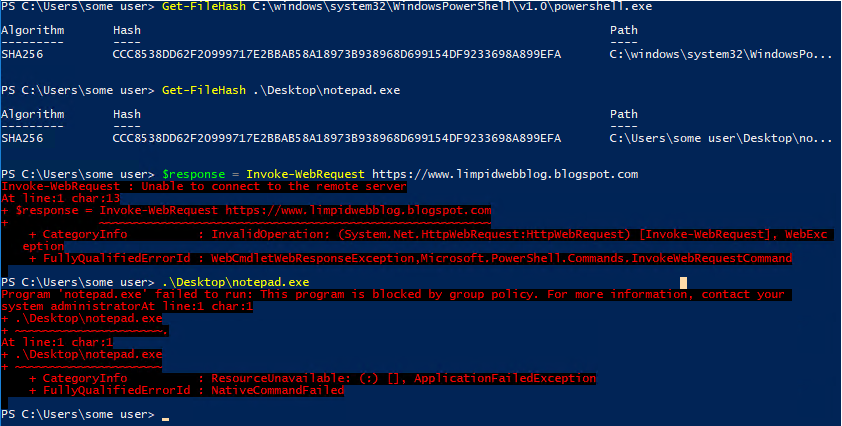
Look at that beautiful red text! 

We can see here that the two technologies working together are effective at stopping this. Windows firewall stops the first attempt to use PowerShell to download external content, and AppLocker stops the workaround!

If possible, rules like this should be configured to ensure (by Publisher or Hash) that all executables with outbound WFwAS rules can only be run from their expected location to ensure that these are not trivially bypassed by moving or renaming the executables.

If a good list of allowed applications was in place this type of activity would be stopped in most cases. This rule could be added to an existing policy for extra assurance or to cover any loopholes in the existing policy. If AppLocker isn't configured in an environment, it would also be possible to configure a new AppLocker policy that did nothing else but block this particular workaround for any executables defined in WFwAS policies. It would just need a deny rule similar to what is shown above, as well as an Allow rule to allow everything else. (I wouldn't recommend this policy by the way, but it would be better than nothing if you were trying to protect WFwAS rules.)

Unfortunately this will only work on Windows Enterprise Edition, I was not able to find a way to do this with Software Restriction Policies. :-(

I think that this is a great illustration of the benefits of defense in depth, even at the endpoint level. If there are ways around a mitigation or a technology it doesn't necessarily mean that technology is no longer useful. It may just mean that we need to get creative and find ways to protect it with the tools available to us.

I have several exciting posts lined up, hopefully I will be able to get them published over the next few weeks.

Until then, work hard and spend time with your family.
Branden
@limpidweb

Monday, July 10, 2017

Scaling AppLocker - Managing it AFTER Deployment!

When working on limiting outbound access to the internet by application with Windows Firewall with Advanced Security I kept running into a key shortcoming - introducing a new or previously unknown application to the system allowed bypasses to firewall rules when using a blocklist configuration. A pre-defined allow configuration of outbound traffic with WFwAS is difficult or nearly impossible to scale, so it wasn't going to solve the problem by itself. WFwAS can do a great job of limiting web access for pre-defined applications in common locations, but it is difficult to use it when there are new applications introduced into folders with different or random path names on thousands of machines. The lack of wildcards or user variables in the path of an application in a rule means that many applications that use the internet could not be managed in a practical manner for more than a small number of machines.

This is one area that an application control policy can help quite a bit. An application control policy can limit newly introduced applications to only those that are trusted (more or less) to behave or have limited abilities to interact with the web programmatically, helping mitigate some of the gaps left by WFwAS. The best bet for a strong security posture on Windows workstations is to use Windows 10 with all of the great mitigations that come with it. For example, Device Guard can be deployed as a very effective deterrent to malware, and many people who are much more knowledgeable than me have discussed it in depth. But what if Device Guard isn't available or isn't enough? There is still a strong case for using AppLocker in many environments, either alone (not as good as Device Guard but better than nothing) or as a more granular supplement to Device Guard.

There is quite a bit of documentation from Microsoft, as well as help on several blogs, with information on how to create an initial AppLocker policy. If you are looking for a place to start, here is a great reference resource; there are many others out there: https://docs.microsoft.com/en-us/windows/device-security/applocker/applocker-overview

A lot of the documentation and blogs discuss creation of an AppLocker policy using a gold image and then pushing it out in a manner that enforces this gold image. It is a good practice and definitely the way to get the most benefit from AppLocker...

...but what about deploying it to a large number of already existing machines that were built over a long period of time with different images of various metallurgic constitutions? What if AppLocker has to be deployed (maybe quickly) into an environment that already has accumulated years of bad habits and many applications that aren't even remotely accounted for by the gold image?

There are a few things that can help make this happen.
  1. Have a clear plan on what to accomplish with AppLocker (see previous link to AppLocker Overview from Microsoft)
  2. Have a method of centralizing and analyzing AppLocker audit logs, such as Windows Event Forwarding (WEF). https://social.technet.microsoft.com/wiki/contents/articles/33895.windows-event-forwarding.aspx
  3. Create a candidate policy based off of a gold image and best practice recommendations.
  4. Test the candidate policy against a representative group in audit mode.
  5. Adjust the policy as necessary using audit logs to inform of blocked files or applications.
  6. Apply the policy in an audit configuration to the whole organization.
  7. Adjust the policy as necessary based off of the audit logs.
  8. Train IT staff and end users on what to expect when the policy is enforced.
  9. When auditing and training is at an acceptable level, enforce the policy.
  10. Continue to adjust policy as needed when something is blocked that should be allowed using enforcement logs.
  11. Continue training.
Sounds pretty straightforward, right? But when I tried this I kept having problems on the steps requiring that the policy be adjusted. When I initially rolled it out I knew of two ways to create an exception to adjust the policy.
  1. Obtain a copy of the application installer and install it on a test machine. Collect all related installer, exe, script, and/or DLL files and use the GPO editor or PowerShell to create new rules.
  2. Copy installer, exe, script, and/or DLL files from a production machine that already has the application installed and use the GPO editor or PowerShell to create new rules.
This worked well when going through the initial deployment, but as the deployment moved from a few machines to a few hundred to thousands these two methods of updating policies didn't scale. The biggest issue was with application installations or updates that executed files or scripts from a temporary location (which would be blocked) and then removed the files from that temporary location when the installation didn't complete. Many of these were triggered by automated update processes that were difficult or time consuming to manually trigger on a test machine. By the time a notification was generated and someone was able to investigate on a production machine the file was already deleted by the installer. Even without those problems, the sheer volume of blocks and time it took to retrieve the files or install them on a test machine to create rules made it difficult to deploy to the entire organization.

In all of the research I did I couldn't find anything that indicated how to solve this problem. All of the guides I had read talked about what to do once I had a local copy of a file, but all I had was a log entry indicating that something had been blocked. I didn't have access to the file, or it took too long to get it, or there were too many.

After a fair amount of researching and frustration I finally found this gem in the Get-AppLockerFileInformation cmdlet documentation:

"The Get-AppLockerFileInformation cmdlet retrieves the AppLocker file information from a list of files or from an event log. File information that is retrieved can include publisher information, file hash information, and file path information. File information from an event log may not contain all of these fields."
 source: https://technet.microsoft.com/en-us/library/ee460961.aspx, emphasis added

The log entry turned out to be the key to solving the problem - and it was staring me in the face the whole time! If I could retrieve the file information from the event log, I could then pipe it into the New-AppLockerPolicy cmdlet and create rules based off of the logs that were already being centralized. This allowed policy modifications for files even if I no longer had access to the file - as long as I had the audit or prevention log event - which meant it could much more easily scale to a full deployment.

Here is a link to some example snippets of code: https://github.com/limpidweb/applocker/blob/master/applocker_ps_examples-1

These can be used as part of a much larger script to help automate some of the more tedious tasks in making AppLocker policy changes, such as version control, partial match searching, policy backups, change control, etc.

Hope this helps! Now to start planning a new post...

Until then, work hard and spend time with your family.
Branden
@limpidweb